Coding with GitHub Copilot
This is a summary of a presentation I gave on using GitHub Copilot, explaining what it is and how I use it.
What is GitHub Copilot?
GitHub Copilot is an AI coding assistant that provides real-time code suggestions as you type within your IDE. Built on OpenAI's Codex model (a descendant of GPT-3), it's been trained on both natural language and publicly available source code.
Why Use Copilot?
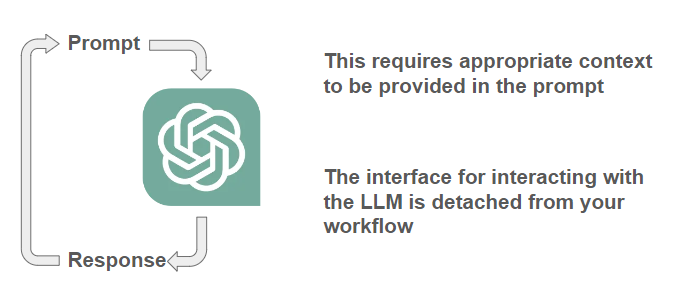
If you've interacted with LLMs to assist with writing code through interfaces like ChatGPT, you will appreciate that this requires constant context switching between your code editor and the chat interface, along with lots of copying and pasting. Copilot integrates directly into your workflow, offering suggestions where you need them.
Getting Started
Setting up Copilot is straightforward:
- Sign up on GitHub
- Install the extension in a supported IDE (like VS Code)
- Toggle the Copilot widget to enable/disable assistance
How I Use Copilot
I've found Copilot particularly useful for:
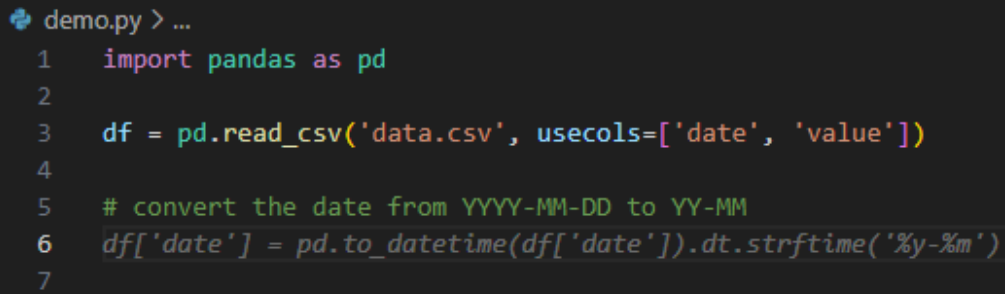
- Writing code from comments. Below is a very basic example.
- Documenting existing code. For example, adding docstrings to existing functions.
- Writing simple tests.
- Filling in repetitive code.
- Working with packages I don't use frequently. In these cases, the autocomplete gives you an idea of what a package can do.
Under the Hood
When you're writing code, you're taking into account the other code you've written within the file you're working on as well as code in other files. You also have an understanding of recent changes you've made and the changes you'd like to make next. What makes Copilot effective is how it approaches providing the this kind of context to the underlying LLM.
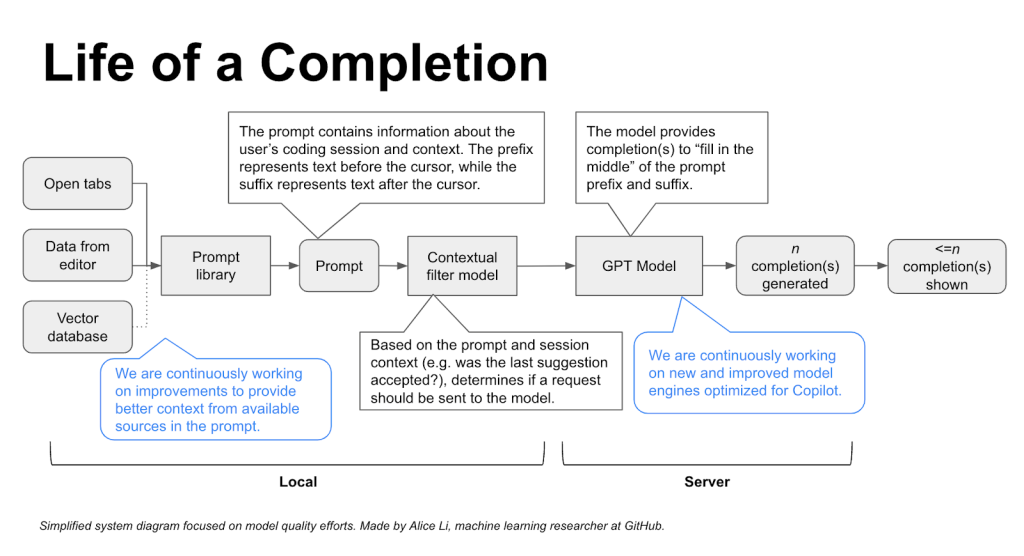
Copilot uses a "Fill-In-the-Middle" approach which provides both the code before your cursor (prefix) and after it (suffix) as context. Additionally, it:
- Looks at open tabs to find other chunks of relevant code
- Considers the programming language being used
- Uses embeddings of your codebase to find relevant code snippets outside of open tabs
- Filters suggestions based on your behaviour, such as whether you accepted the last suggestion
The figure below is taken from this blog post from GitHub which describes how Copilot works in more detail.
Best Practices for Better Results
To get the most out of Copilot:
- Set high-level goals at the top of your scripts
- Keep related files open
- Write detailed comments
- Use descriptive function names
Limitations and Considerations
- The underlying model (based on GPT-3) isn't as powerful as newer alternatives
- Complex code can be challenging for it to handle
- Code completion alone isn't everything. You'll still need other tools for tasks like debugging and code explanation
Impact on Development
GitHub reports increased coding speed and developer satisfaction when using Copilot. But there are interesting trends in code operations in this report from GitClear:
- Increased code addition
- Reduced code refactoring
- Increased in code churn (code modified within two weeks)

Recommendations
GitHub Copilot is most effective when used thoughtfully and in conjunction with solid programming practices.
My advice for using Copilot effectively:
- Adapt your usage based on the context. It's great for one-off tasks but you should use it carefully if contributing to a large, active codebase.
- Use it to accelerate tasks you already know how to do, rather than relying on it for complex problem-solving.
- Think of it as an assistant that makes you more efficient. It doesn't remove the need to understand your code.